
What the visibility setting controls
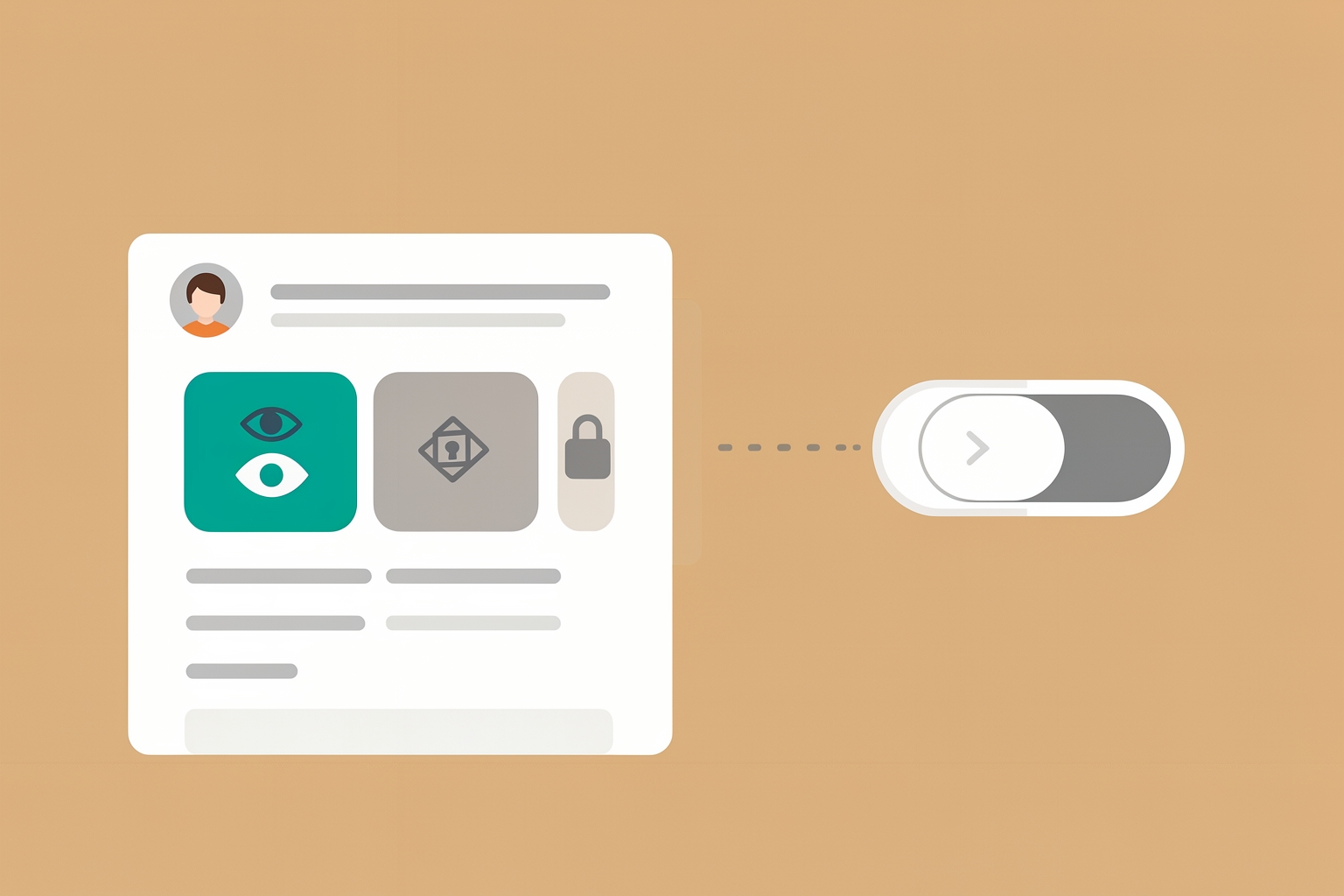
Your GitHub profile can show the organizations you belong to.
Sometimes that membership is useful proof.
Sometimes it is information you would rather keep quiet.
GitHub lets you decide per organization, and the choice is easy to change later.
This guide walks through what publicizing actually reveals, when it helps you, when it works against you, and how to flip the setting either way.
GitHub organization membership has two visibility states: public and private.
When your membership in an organization is public, your avatar can appear in that organization's member list, and the organization can appear on your profile.
You can change this setting yourself.
According to GitHub's documentation, you open Organizations from your profile picture, click the organization name, and open People GitHub Docs.
There you find your username and use the visibility dropdown next to it to choose Public or Private.
If the member list is long, you can search for your own username in the search box.
Two practical notes follow from that.
First, the setting is per organization, not global.
You can publicize one affiliation and hide another.
Second, it is reversible in the ordinary sense: you can switch back and forth whenever you want, so a choice you make today is not permanent.
What public membership actually signals
A public organization membership is a small, quiet signal.
It says you are part of a group, not what you did there.
Visitors to your profile see the affiliation; they do not see your role, your contributions inside the org, or how active you are.
That matters for expectations.
If you publicize membership hoping it reads as a credential, be aware that it reads as association.
The stronger evidence of actual work is usually your contribution activity, pinned repositories, or a profile README that explains your role in your own words.
GitHub's profile documentation describes the README as a section you fully control, where you can describe your work and interests GitHub Docs.