

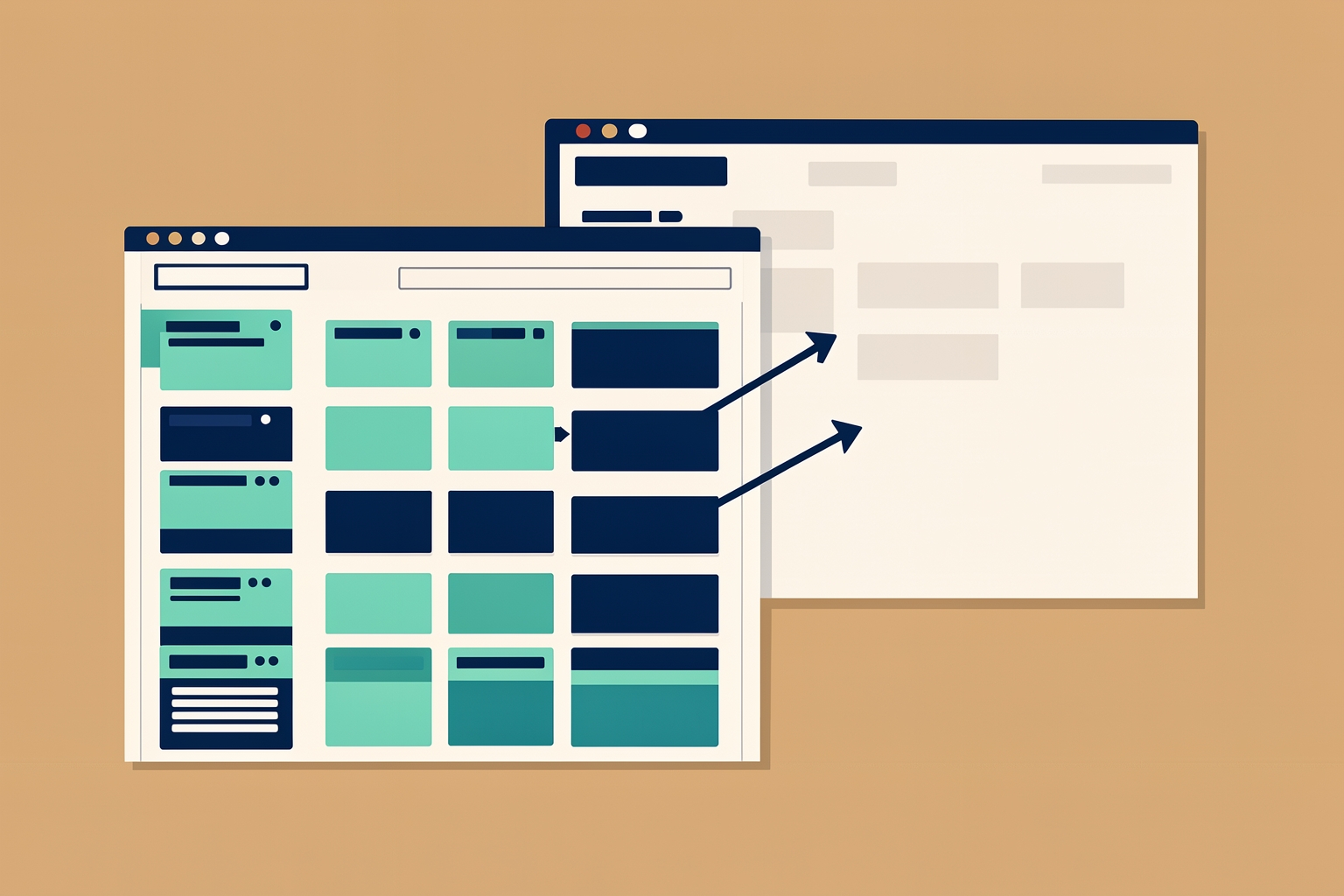
What copying a GitHub project actually carries over
When you start a new project on GitHub, you do not have to rebuild your planning board from scratch.
GitHub lets you copy an existing project and use it as a template, which can save you time configuring views and custom fields.
But a copy is not a clone of everything.
Knowing exactly what carries over and what does not is the difference between a fast start and a confusing half-empty board.
This guide walks through what a copied project contains, what it leaves behind, when copying makes sense, and when you are better off starting fresh.
According to GitHub's documentation, a copied project keeps the same views, custom fields, draft issues and field values, and insights.
Configured workflows are copied too, except any auto-add workflows.
In plain terms, the shape of your planning setup travels with the copy: how you look at work, how work is categorized, and any automation you configured.
Just as important is what does not carry over.
The new project will not contain the original project's items, collaborators, or team and repository links.
That means your real issues and pull requests stay in the old project, your teammates do not automatically get access, and the new project is not yet connected to any repositories.
One detail worth pausing on: draft issues do carry over if you select that option during the copy.
Draft issues are ideas that exist only inside the project rather than as real issues in a repository.
If your old project contains leftover draft ideas from a finished initiative, decide whether you want them in the new one before you copy.
How to copy a project step by step
The copy process is short.
GitHub documents it as follows:
- Navigate to the project you want to copy.
- In the top-right, open the menu.
- Click Make a copy .
- Optionally, select Draft issues will be copied if selected if you want all draft issues copied with the project.
- Under Owner , select either the organization that will own the new project or your personal account.
- Type the new project name.
- Click Copy project .
Two of these choices deserve a second look.
The owner choice matters because it decides where the project lives and who can find it.
If the new project belongs to a team effort, assigning it to the organization rather than your personal account keeps it visible to the right people.
The draft-issues checkbox matters because it is the only point where you can decide whether leftover ideas ride along.
When copying makes sense
Copying shines when your new effort has the same shape as an old one.
Consider a freelancer who runs a content calendar project with views grouped by publication status, custom fields for client and channel, and a workflow that moves items along.
When a new client signs, copying the project gives them the same board, the same fields, and the same views in seconds.
They then clear out anything client-specific and connect the new repositories.
The same logic applies to recurring internal processes.
A product team that runs each launch through the same stages can copy the previous launch's project instead of recreating its columns, fields, and saved views.
The structure encodes lessons from the last cycle without carrying over last cycle's unfinished work.
GitHub also supports a broader template pattern at the organization level.
You can set projects in your organization as templates and curate a list of recommended templates that other members can use as the base for the projects they create.
If people keep rebuilding similar boards, promote one well-configured project to a recommended template.
That scales better than telling everyone to copy your personal project.
When starting fresh is the better call
Copying is not always right.
If your new effort has different work types, different statuses, or a different rhythm, an inherited setup becomes a constraint.
A board built for a software launch, with fields like release train and regression risk , fits poorly around a community event or a hiring pipeline.
Deleting inherited fields and views takes about as long as building the setup you actually want.
Starting fresh also avoids keeping a structure just because it already exists.
Also consider the state of the source project.
If it is cluttered with stale views, half-used custom fields, and leftover draft issues, copying spreads that clutter forward.
A copy amplifies whatever you built before, good and bad.
If the old project drifted from how the team actually works, fix or rebuild the structure first, then copy the cleaned-up version.
Finally, remember that auto-add workflows do not carry over.
If your old project automatically pulled in issues from a repository using filter criteria, the copy will not do that until you reconnect it.
That is usually desirable, since the new project should track new repositories, but it means automation is part of your setup work, not part of the copy.
What to do right after copying
A fresh copy is a scaffold, not a working project.
A short setup pass gets it ready:
- Remove leftover draft issues. If you copied drafts, delete the ones that belonged to the old effort. Draft issues that exist only in the project are easy to overlook and can make the new board look busier than it is.
- Connect repositories and teams. Since team and repository links do not carry over, add the repositories the new project should draw from and grant access to the people who need it.
- Rebuild auto-add workflows. If you relied on automatic item addition, configure it again against the new repositories and the filters that fit this effort.
- Prune fields and views. Delete custom fields and saved views that do not apply, and rename anything that referenced the old initiative.
- Add the first real items. You can add issues and pull requests individually, in bulk, by pasting a URL, or by searching from within the project. You can also create draft issues to capture early ideas, and convert them into real issues in a repository later when they are ready to become work.
That last point is worth expanding.
Draft issues are useful for quickly capturing ideas before you know where they belong.
When a draft matures, you can convert it to an issue and choose the repository it should live in, in either table or board layout.
This gives you a low-friction way to seed a copied project with the new effort's first tasks without committing each one to a repository prematurely.
A quick decision check
Before you click Make a copy , ask three questions:
- Does the new effort use roughly the same statuses, fields, and views as the old one? If yes, copying saves real time. If no, start fresh.
- Is the source project clean? If it is cluttered, tidy it first or build anew, because the copy inherits the mess.
- Who needs access, and which repositories feed this project? Since collaborators and repository links do not carry over, plan the connection work as part of setup, not as an afterthought.
If you answered yes, yes, and have a clear list, copying is likely the right move.
If any answer is shaky, sketch the new project's structure on paper first.
A short planning pass often reveals that only part of the old setup is worth reusing.
How this fits into your wider GitHub setup
Copying a project is one piece of a larger question: how much of an existing GitHub setup should carry into a new effort.
The same trade-off appears elsewhere.
If you are weighing whether your repositories themselves should move under an organization for shared ownership, see Should You Move Your GitHub Repositories to an Organization?
For the related question of what happens to planning artifacts when work ends, Should You Close or Delete an Issue on GitHub? covers how to treat leftover issues.
Setting up an organization to own shared templates?
Should You Customize Your GitHub Organization Profile Before Inviting Collaborators? explains what to prepare first.
The bottom line
Copy an existing GitHub project when the new effort shares the old one's structure and the source is clean.
The copy gives you views, custom fields, workflows, and insights for free.
It deliberately leaves behind items, collaborators, and repository links, and drops auto-add workflows.
Treat the copy as a starting scaffold: clear the leftovers, connect the right repositories and people, and rebuild the automation.
Done that way, a copy saves you the tedious part of setup without importing yesterday's clutter.
Source references: docs.github.com; docs.github.com; docs.github.com.
Take the next step with Ideoreto. Use the ideas in this guide as a starting point for your next project.
Register for Ideoreto to get started.