

What GitHub officially recommends
Running two GitHub accounts feels manageable at first.
One holds your weekend projects, the other your client work or coursework.
Over time, the split creates friction: contributions land on the wrong profile, collaborators ping the wrong username, and your public track record looks thinner than it is.
GitHub does not offer a one-click merge button.
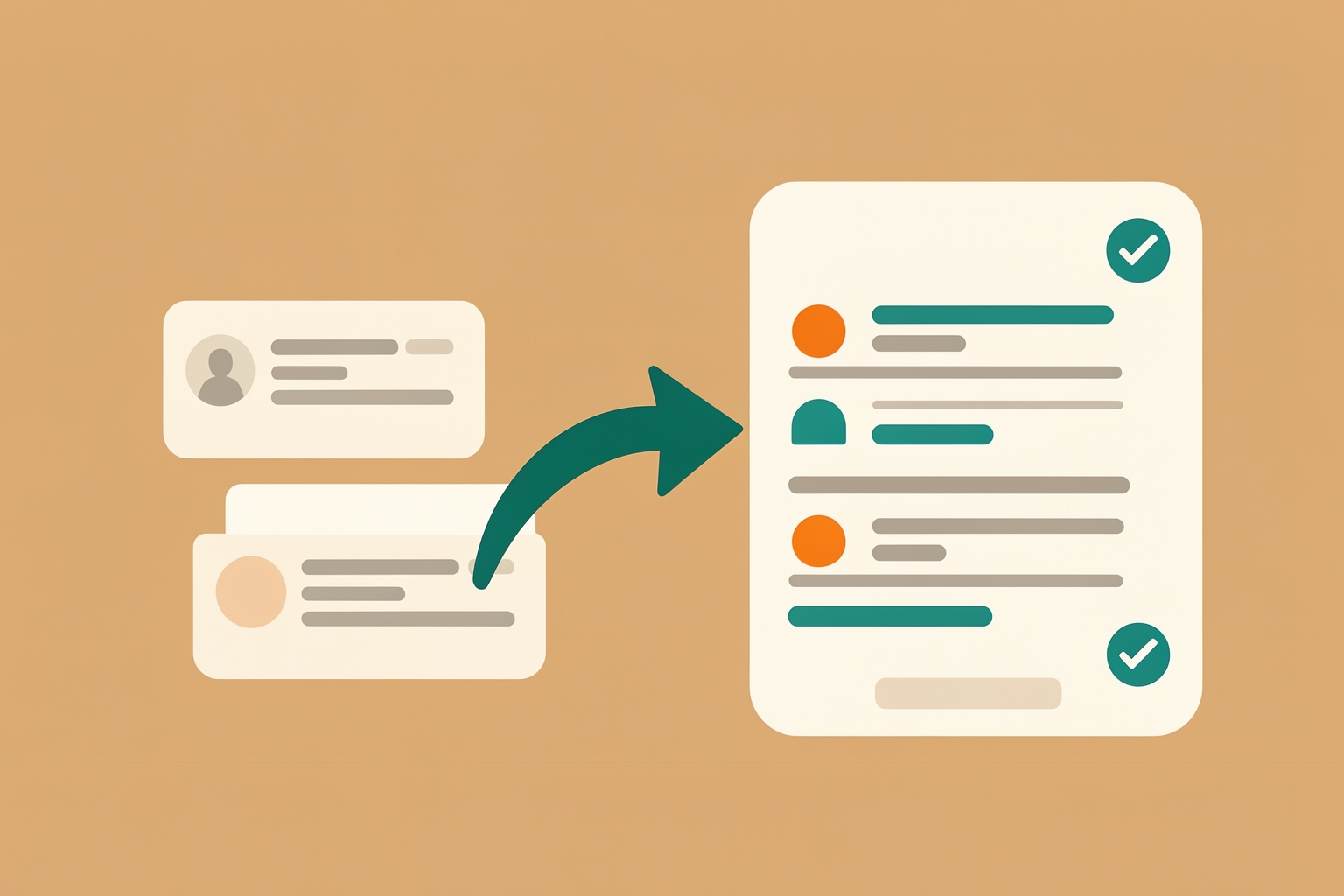
What it does offer is a documented consolidation path: move your repositories, update your local clones, fix commit attribution, and delete the account you no longer want.
This guide walks through each step, what can go wrong, and how to decide whether merging is right for you at all.
GitHub's own guidance is clear: if you keep separate work and personal accounts, they recommend using one personal account for both (GitHub Docs).
In other words, the split is possible, but the platform's preferred setup is a single account.
Because there is no native merge, consolidation means manually combining the contents of one account into the other and then removing the leftover shell.
The steps below follow GitHub's documented process.
Step 1: Decide which account to keep
Before moving anything, pick the survivor.
Consider:
- History and reputation. Which profile has the contribution history, followers, and repositories that matter to your goals?
- Email association. Which account is tied to the email address you use for most commits? This matters for attribution later.
- External dependencies. Which username appears in documentation, README badges, package registries, or links you have shared?
There is no universally correct answer.
A freelancer might keep the account clients already know; a student might keep the one with years of coursework.
The key is choosing deliberately rather than by accident.
Step 2: Transfer repositories
GitHub supports transferring repositories between accounts you own.
When you transfer a repository, the issues, pull requests, and wikis move with it (GitHub Docs).
That is a significant relief: you do not lose discussion history or documentation.
After transferring, GitHub explicitly advises one verification step: confirm the repositories actually exist on the account you are keeping (GitHub Docs).
Do not skip this.
It is your safety check before anything irreversible happens.
Step 3: Update remote URLs in local clones
Your local copies of the moved repositories still point at the old account's URLs.
GitHub instructs you to update the remote URLs in any local clones of the repositories that were moved (GitHub Docs).
Practically, that means opening each cloned repository and updating its remote to the new location.
If you skip this, pushes will fail or, worse, target a repository that no longer exists under the old account.
A simple inventory helps: list every machine and folder where you have cloned the moved repositories, then update each one.
Step 4: Fix commit attribution
This is the step people most often miss.
Your past commits were authored with an email address associated with the old account.
To make those commits count toward the account you are keeping, add the email address you used to author the commits to the account you are keeping (GitHub Docs).
GitHub also notes there are additional requirements for commits to count as contributions, and points to its profile contributions reference for the details (GitHub Docs).
In short: adding the email is necessary, but you should verify the contribution requirements are met rather than assuming the graph will populate immediately.
For future work, set your local Git configuration to use an email tied to the surviving account, so new commits attribute correctly from the start.
Step 5: Back up, then delete the old account
Before deleting anything, GitHub requires and recommends preparation.
Its deletion guide tells you to make a copy of all repositories, private forks, wikis, issues, and pull requests owned by the account before you delete it (GitHub Docs).
The warning that follows is blunt: once your personal account has been deleted, GitHub cannot restore your content (GitHub Docs).
Deletion is permanent.
That is why the backup step exists, and why you should complete it even if you believe the transfer went perfectly.
The deletion flow includes confirmation steps: you type your username or email, then a phrase from a prompt, to confirm you understand what deletion means (GitHub Docs).
GitHub deliberately makes this hard to do by accident.
Common pitfalls when consolidating
- Deleting before verifying. If you remove the old account before confirming the repositories exist on the new one, you lose your fallback. Verify first, delete last.
- Forgetting private forks and wikis. The backup guidance covers private forks, wikis, issues, and pull requests, not just public repositories (GitHub Docs). These are easy to overlook.
- Broken external links. Old README badges, blog posts, and shared links pointing to the deleted username will stop resolving. Update the ones that matter most.
- Unattributed history. If you skip the email-adding step, past commits may not appear on your kept profile's contribution graph.
Should you merge at all?
Merging is not the only option.
Some people deliberately keep accounts separate to draw a line between professional and personal work.
That is a legitimate choice, and GitHub's recommendation of a single account is guidance, not a rule.
Ask yourself what the split is costing you.
If collaborators struggle to find your work, your contribution history is fragmented, or two accounts create more overhead than privacy, consolidation probably helps.
If the separation genuinely protects you, for instance when a client contract requires it, keeping both may be the better call.
It also helps to think about what your profile communicates.
A consolidated profile with a clear story is easier for others to evaluate, whether that is a potential collaborator or a hiring manager.
If you are polishing your profile, decide whether to present finished projects or work in progress GitHub Profile README: Finished Projects or Work in Progress?
Also decide whether to show private contributions Should You Show Private Contributions on GitHub? How to Decide.
A practical checklist
- Choose the account to keep, weighing history, email association, and external links.
- Transfer repositories, confirming that issues, pull requests, and wikis moved with them.
- Verify the repositories exist on the kept account.
- Update remote URLs in every local clone.
- Add the old commit email to the kept account and check the contribution requirements.
- Back up all repositories, private forks, wikis, issues, and pull requests from the old account.
- Delete the old account, understanding that GitHub cannot restore content afterward.
What consolidation does and does not fix
A merged account gives you one profile, one contribution graph, and one place for collaborators to look.
It does not automatically repair every external reference, and it does not guarantee your past commits display as contributions unless the attribution requirements are met.
Treat the merge as a project with a verification step at the end, not a single action.
If your motivation is presenting a stronger track record, remember that a profile is only as useful as the work behind it.
Consolidation organizes your proof; it does not create it.
For what actually moves opportunities your way, see idea vs execution what actually matters more.
For turning activity into evidence, see idea validation metrics what signals actually matter.
Reading others' profiles?
The same clarity applies in reverse. How to Read a GitHub Profile Before You Collaborate covers what to look for.
Consolidating two GitHub accounts is a sequence, not a button: transfer, verify, rewire, attribute, back up, then delete. Done in that order, nothing important is left behind.
Take the next step with Ideoreto. Use the ideas in this guide as a starting point for your next project.
Register for Ideoreto to get started.